Most consumers need a professional IP-based security camera system for their home, business or property, but it is assumed that IP systems are complex and very heavy. This discourages them from buying and hinders the security they need. The truth is, setting up an IP camera is easier than you might think. It includes a basic understanding of networking and by following some simple steps you will get your IP cameras up and running in no time.
An IP camera can be directly connected to your network or computer and there are three ways to do this. The three ways listed below do not require an NVR. An NVR or Network Video Recorder is the device to which IP cameras are connected. The NVR records the video provided by the IP cameras to a HD (720p, 1080p), 2K HD or 4 Ultravah (4K) hard drive, depending on the type of NVR and the type of camera used with it.
Although IP cameras are network-based cameras, they do not require Internet access to be used as they are stand-alone devices that can be used on a local network. A simple local network can be one of the following:
 b) Next, connect a network cable from the camera to your computer.
 c) Set your computer's network port to a static IP address such as 192.168.1.200 so that you can talk to your camera. How did you do this on Windows Computer:
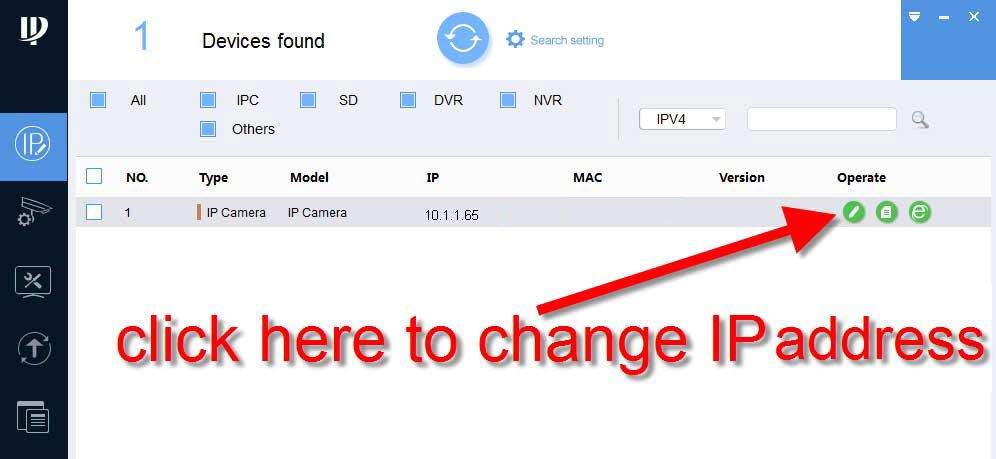
d) Once you have a static IP address assigned to your computer's wired network port, turn off WiFi on your computer. You can find the current IP address of the camera using the Configuration Tool as shown. Our test camera's current IP address is 10.1.1.65. If you need to change the IP address to allow it to say 192.168.1.120, you can do so by clicking the pencil icon to edit it.
c) Set your computer's network port to a static IP address such as 192.168.1.200 so that you can talk to your camera. How did you do this on Windows Computer:
d) Once you have a static IP address assigned to your computer's wired network port, turn off WiFi on your computer. You can find the current IP address of the camera using the Configuration Tool as shown. Our test camera's current IP address is 10.1.1.65. If you need to change the IP address to allow it to say 192.168.1.120, you can do so by clicking the pencil icon to edit it.
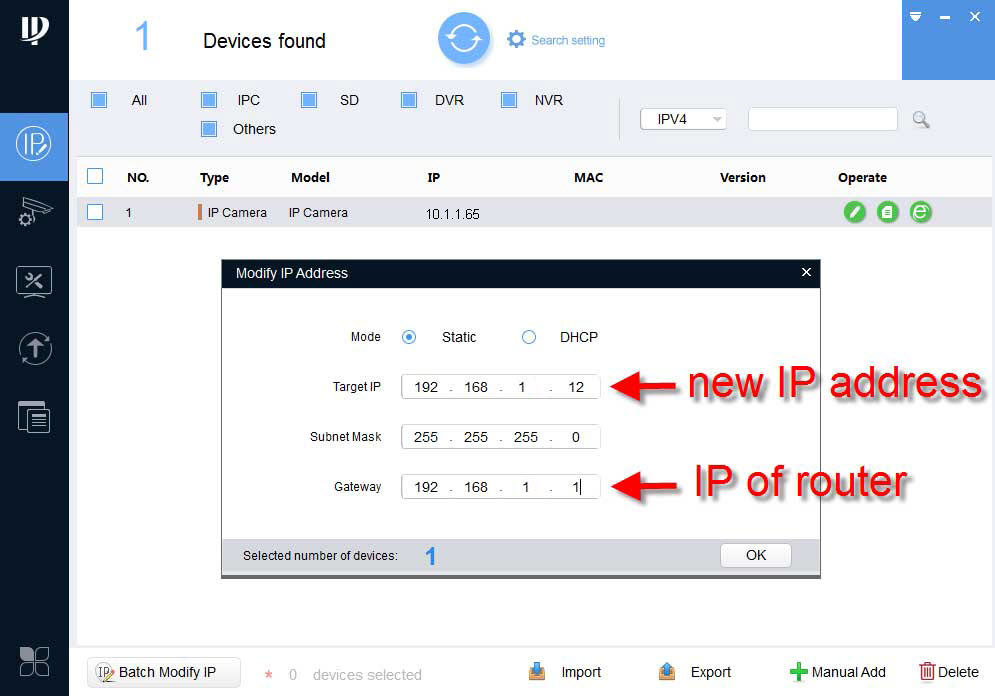
 e) As explained in our article connecting security cameras to the Internet, for two devices in a network to talk to each other, they must have the same IP address scheme. In 1C we set our computer's address to be 192.168.1.200, we will change the address of this camera to 192.168.1.X, where X is a number between 2 and 254 and is not the same as our computer's current address. We chose 12, so below is a screenshot of setting your camera's ip address if you're following it in our guide. Set the subnet to 255.255.255.0 and the gateway to 192.168.1.1.
 f) After you have changed your camera's IP address to an IP address that matches your network, type your camera's new IP address in the URL of internet explorer. Here is a short example:
You can also watch our camera using our PC software. Here is how SmartPSS is installed anyway.
In a nutshell, the above is a quick and easy way to connect an IP camera to a computer with a wired network port. This is great in the following scenarios:
f) After you have changed your camera's IP address to an IP address that matches your network, type your camera's new IP address in the URL of internet explorer. Here is a short example:
You can also watch our camera using our PC software. Here is how SmartPSS is installed anyway.
In a nutshell, the above is a quick and easy way to connect an IP camera to a computer with a wired network port. This is great in the following scenarios:
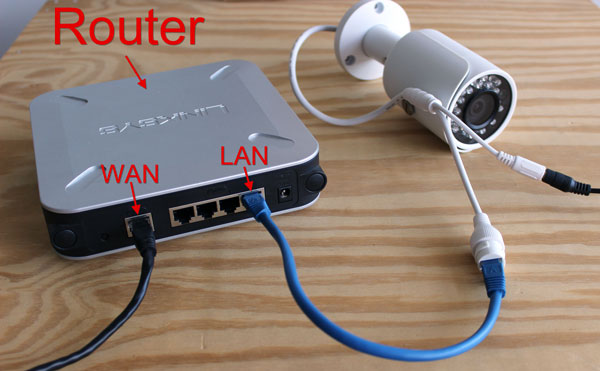
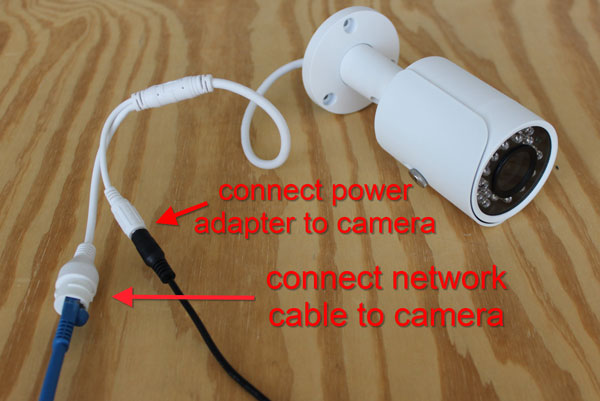 b) Connect a network (Ethernet) cable from the camera to the router to establish a data connection between the camera and the router.
 c) The camera takes about 2-3 minutes to boot. Use our IP Finder Configuration Tool to find the camera on your local area network (LAN). Below is a screenshot showing how it came to our case.
The camera currently has an IP address of 10.1.1.65. As explained in our article that connects security cameras to the internet, the IP address must match your network's IP scheme in order for the camera to be accessed from your network computer. In our case, the router is IP 192.168.1.1, so we will have to change the IP address of the camera. To change the IP simply press the pencil icon to edit.
d) We will set the camera to an IP of 192.168.1.X, we chose 192.168.1.12. Before we go ahead and change the IP address, we have to consider duplicate IP addresses that will create network communication problems on the network. To see if a specific IP address is available on your LAN, use the command prompt in Windows to ping the address you want to use . Below is a video explaining how to use the ping command. You can also use this command on Mac in the terminal.
e) Let's change the IP address. In our case, we set it to 192.168.1.12. In simple networks, usually the subnet mask 255.255.255.0 is the gateway router's IP address. Press the OK button.
f) Once the camera has been assigned a new IP address, you can access the camera using your Web Browser or SmartPSS as shown in 1F above.
3) Camera - PoE Switch or PoE Injector
We discussed that PoE powers the camera and that a 12V power adapter is not required in this scenario.
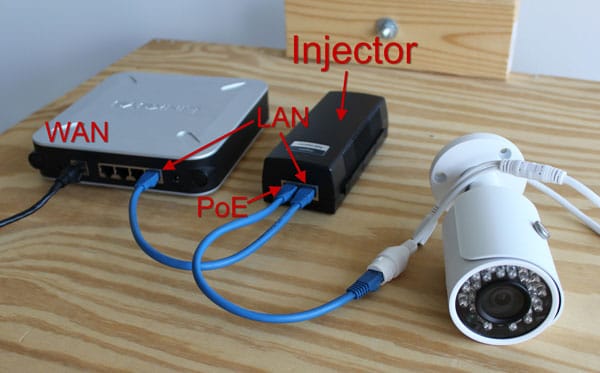
In this method, you plug an Ethernet cable into the PoE port on a PoE switch or injector that is compatible with the camera. PoE switch or injector connects to router.
Here's how you connect to a PoE switch.
c) The camera takes about 2-3 minutes to boot. Use our IP Finder Configuration Tool to find the camera on your local area network (LAN). Below is a screenshot showing how it came to our case.
The camera currently has an IP address of 10.1.1.65. As explained in our article that connects security cameras to the internet, the IP address must match your network's IP scheme in order for the camera to be accessed from your network computer. In our case, the router is IP 192.168.1.1, so we will have to change the IP address of the camera. To change the IP simply press the pencil icon to edit.
d) We will set the camera to an IP of 192.168.1.X, we chose 192.168.1.12. Before we go ahead and change the IP address, we have to consider duplicate IP addresses that will create network communication problems on the network. To see if a specific IP address is available on your LAN, use the command prompt in Windows to ping the address you want to use . Below is a video explaining how to use the ping command. You can also use this command on Mac in the terminal.
e) Let's change the IP address. In our case, we set it to 192.168.1.12. In simple networks, usually the subnet mask 255.255.255.0 is the gateway router's IP address. Press the OK button.
f) Once the camera has been assigned a new IP address, you can access the camera using your Web Browser or SmartPSS as shown in 1F above.
3) Camera - PoE Switch or PoE Injector
We discussed that PoE powers the camera and that a 12V power adapter is not required in this scenario.
In this method, you plug an Ethernet cable into the PoE port on a PoE switch or injector that is compatible with the camera. PoE switch or injector connects to router.
Here's how you connect to a PoE switch.
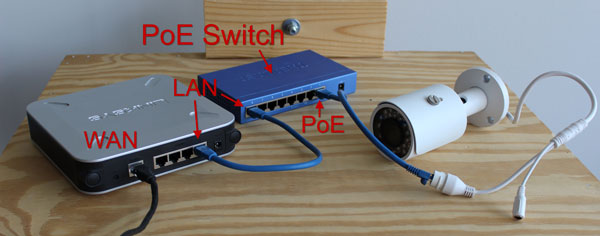 Here's how you connect to a PoE injector
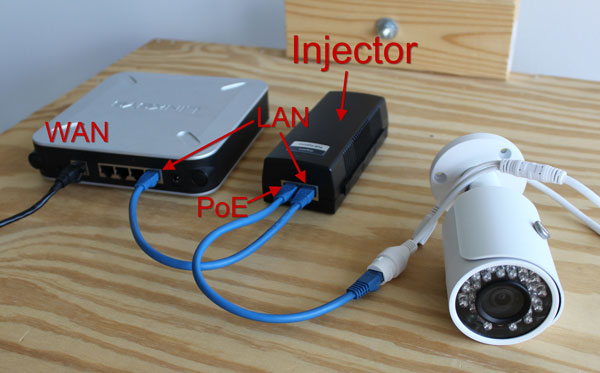 Again, use the Config Tool to find your camera's IP address and change it to match your network layout as described in steps 2C to 2E (if needed). Once the camera is on the same network as your computer, you can login and view the camera as shown in Step 1F.
summary
At this point, you should now know a good amount about the network and have followed the above-mentioned steps to make your own IP camera system using your computer and IP camera .
Again, use the Config Tool to find your camera's IP address and change it to match your network layout as described in steps 2C to 2E (if needed). Once the camera is on the same network as your computer, you can login and view the camera as shown in Step 1F.
summary
At this point, you should now know a good amount about the network and have followed the above-mentioned steps to make your own IP camera system using your computer and IP camera .
- An IP network camera connected with a network cable to your desktop computer's network port.
- An IP camera connected to a router connected to a desktop or laptop computer, but the router is not connected to the internet.
1) 12V DC power adapter directly into a PC with a network cable
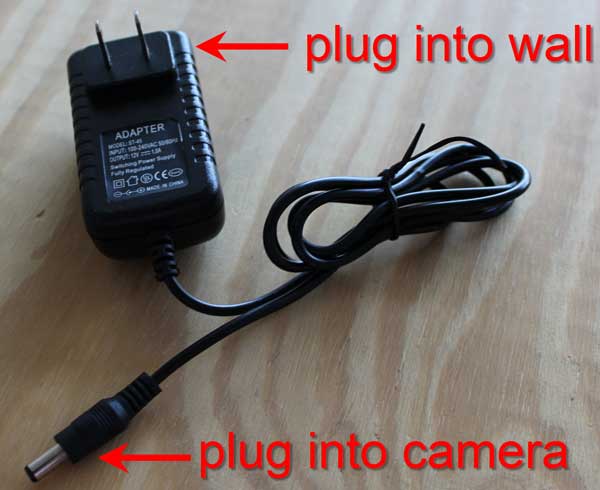
a) For this method, we will power the camera using a 12V DC 1amp power adapter that plugs into a 110V AC outlet. Below is the picture of the reliable power adapter.
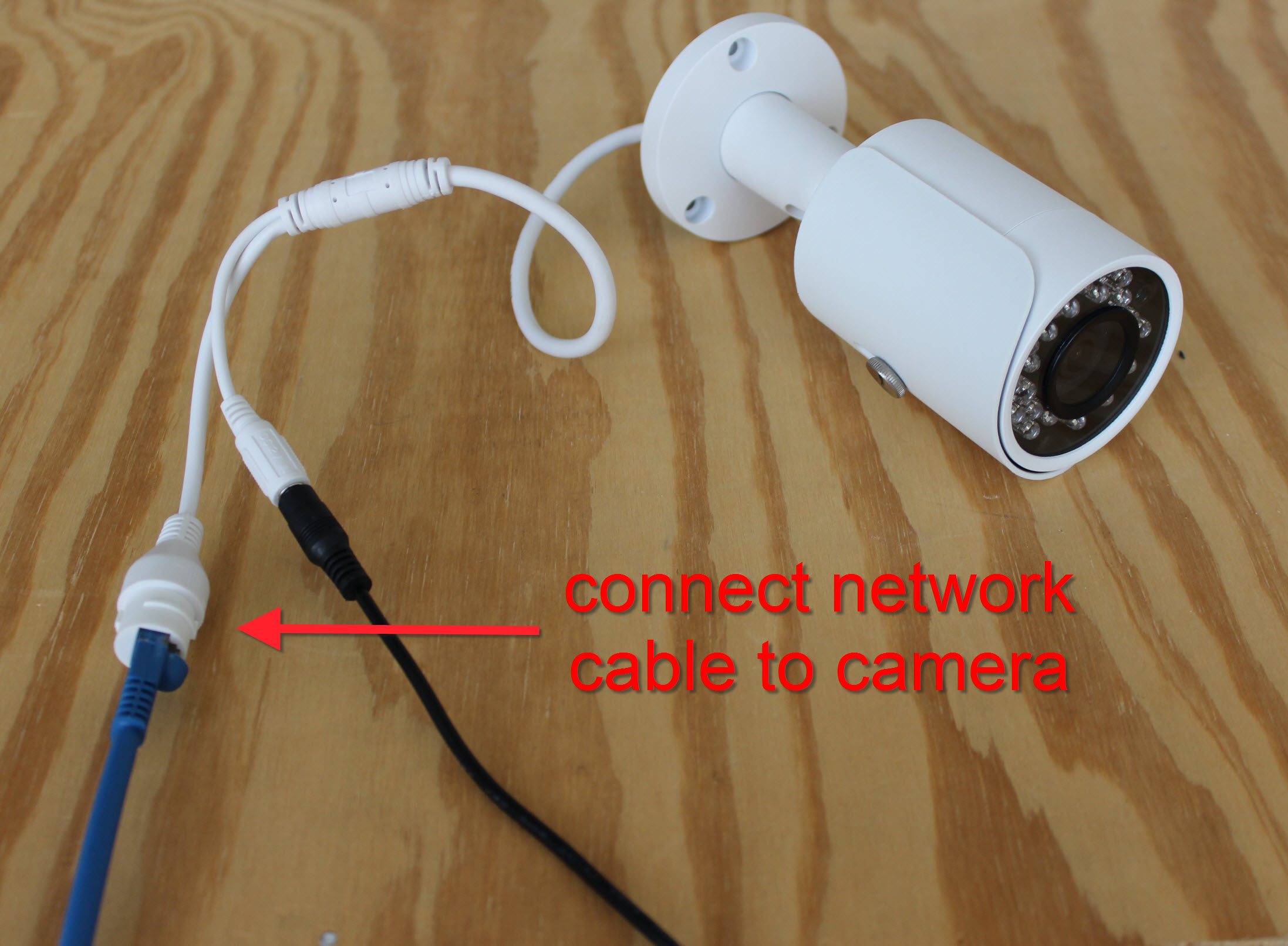
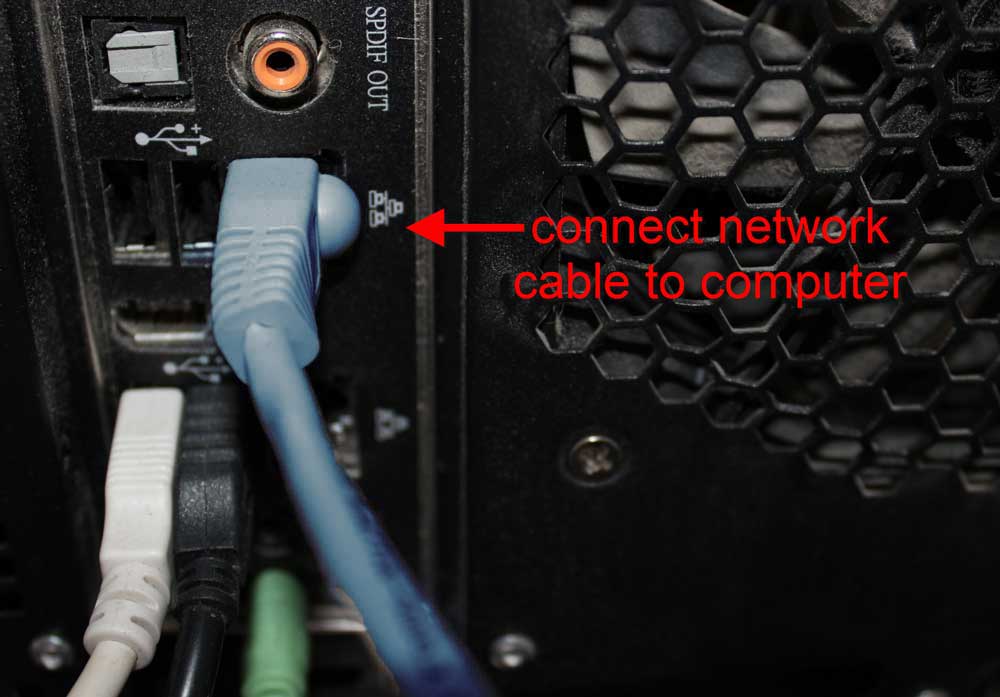
b) Next, connect a network cable from the camera to your computer.
c) Set your computer's network port to a static IP address such as 192.168.1.200 so that you can talk to your camera. How did you do this on Windows Computer:
Changing the IP Address of Your Computer's Network Port
Changing the IP Address of your computer's Network Port using Windows 10.
e) As explained in our article connecting security cameras to the Internet, for two devices in a network to talk to each other, they must have the same IP address scheme. In 1C we set our computer's address to be 192.168.1.200, we will change the address of this camera to 192.168.1.X, where X is a number between 2 and 254 and is not the same as our computer's current address. We chose 12, so below is a screenshot of setting your camera's ip address if you're following it in our guide. Set the subnet to 255.255.255.0 and the gateway to 192.168.1.1.
f) After you have changed your camera's IP address to an IP address that matches your network, type your camera's new IP address in the URL of internet explorer. Here is a short example:
Viewing an IP Camera Using a Web Browser
In this video, you will learn how to log in to the Web Service using the Internet Explorer web browser and view the video stream of your IP camera.Adding IP Cameras to Smart PSS
In this video, you will learn how to add IP cameras to smart PSS; so you can watch your camera remotely.- You don't have a router and want to set up a closed loop system between a computer and a security camera.
- You are trying to test or troubleshoot an IP camera.
- You are trying to connect to a security video recorder directly from a computer.
2) 12V DC power + router network cable to camera
This method will show you how to connect the IP camera to your router and view it over a network and power the camera using a 12V DC power adapter. a) Connect a 12V DC power supply to your camera and connect the power adapter to the wall to power the camera.
b) Connect a network (Ethernet) cable from the camera to the router to establish a data connection between the camera and the router.
c) The camera takes about 2-3 minutes to boot. Use our IP Finder Configuration Tool to find the camera on your local area network (LAN). Below is a screenshot showing how it came to our case.
The camera currently has an IP address of 10.1.1.65. As explained in our article that connects security cameras to the internet, the IP address must match your network's IP scheme in order for the camera to be accessed from your network computer. In our case, the router is IP 192.168.1.1, so we will have to change the IP address of the camera. To change the IP simply press the pencil icon to edit.
d) We will set the camera to an IP of 192.168.1.X, we chose 192.168.1.12. Before we go ahead and change the IP address, we have to consider duplicate IP addresses that will create network communication problems on the network. To see if a specific IP address is available on your LAN, use the command prompt in Windows to ping the address you want to use . Below is a video explaining how to use the ping command. You can also use this command on Mac in the terminal.
How to Ping the Device in Your Network?
How to Ping the Device in Your Network?
f) Once the camera has been assigned a new IP address, you can access the camera using your Web Browser or SmartPSS as shown in 1F above.
3) Camera - PoE Switch or PoE Injector
We discussed that PoE powers the camera and that a 12V power adapter is not required in this scenario.
In this method, you plug an Ethernet cable into the PoE port on a PoE switch or injector that is compatible with the camera. PoE switch or injector connects to router.
Here's how you connect to a PoE switch.
Here's how you connect to a PoE injector
Again, use the Config Tool to find your camera's IP address and change it to match your network layout as described in steps 2C to 2E (if needed). Once the camera is on the same network as your computer, you can login and view the camera as shown in Step 1F.
summary
At this point, you should now know a good amount about the network and have followed the above-mentioned steps to make your own IP camera system using your computer and IP camera . Etiketler:
A
Admin
ACME GÜVENLİK ekibinden güvenlik sistemleri uzmanı
Önceki Yazı
Speed Dome Kamera(PTZ) Nedir Nasıl Kontrol Edilir
Sonraki YazıDVR NVR NAS veya FTP Yedekleme
İlgili Yazılar
06.09.2023 •
62 dk
Hikvision Nasıl Yapılır Eğitimleri Bölüm 1
20.10.2022 •
8 dk
WiFi Kamerayı NVR Bağlamak Tüm Markalar
12.09.2022 •
2 dk
Uniview Şifre Resetleme Tüm Modeller