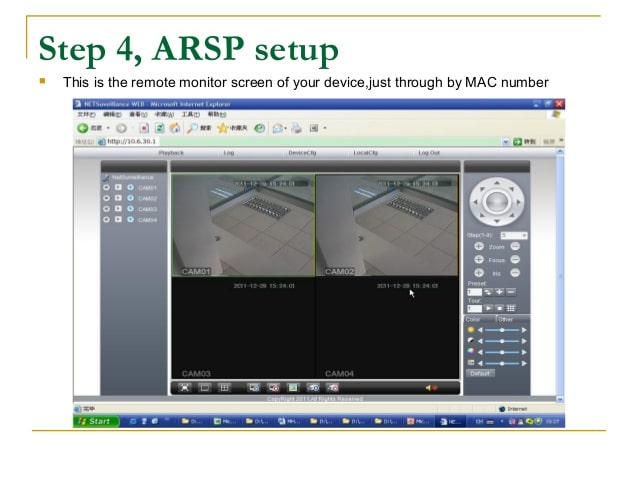
ARSP Server aslında bir bakıma xmeye veya benzeri bulut sunuculardan bağımsız kendi bulut sunucunuzu oluşturma yöntemidir. Bilindiği üzere bir çok bulut sunucu yoğunluktan ötürü sürekli kopmalar veya donmalar meydana getiriyor bu yöntemle bu sıkıntıya son veriyoruz.
1. Put IP address of the DVR in the address bar of the internet explorer & press enter key.
Default IP address of the Avtron DVR is 192.168.1.10
 2. Web page of the client software of the Dvr will open. Click on Allow (Window vista & window7 OS) or right click on the pop up massage & Select RUN ADD OnS (Window xP OS) to run active x.
 3. After installation of the Active x, web page appears containing Username & Password as below
 4. Enter Username, Password (default is blank) of the DVR & click on Log-in.
 5. Click on Cancel Bar
 6. Click Device Cfg to access configuRation menu
 7. ConfiguRation Window will open on the screen as shown below. Click on System configuRation.
 8. Click on NetServices icon.
 9. Double click on ARSP to open the configuRation window.
 10. Check the Enable box. Select DNS in DDNS Type drop down box, enter arsp.cn in Server IP, enter 15000 in Port & enter 1 in Update Period. Enter Username & Password same to same as registered on the arsp server. Click on OK to save the configuRation.
 11. Prompt massage window for the successful configuRation appears. Click on OK to save.
 12. Click on Network icon to open the configuRation window.
 13. Enter IP Address, Subnet Mask, Gateway, Primary DNS & Secondary DNS as per your network structure.
Enter address of Primary DNS same as Gateway in general conditions. Click on OK to save the configuRation.
<
13. Enter IP Address, Subnet Mask, Gateway, Primary DNS & Secondary DNS as per your network structure.
Enter address of Primary DNS same as Gateway in general conditions. Click on OK to save the configuRation.
< 14. Prompt massage window for the successful configuRation appears. Click on OK to save
 15. Click on Advance icon & then click on Reboot icon to restart the Avtron DVR to synchronize it with the router.

2. Web page of the client software of the Dvr will open. Click on Allow (Window vista & window7 OS) or right click on the pop up massage & Select RUN ADD OnS (Window xP OS) to run active x.
3. After installation of the Active x, web page appears containing Username & Password as below
4. Enter Username, Password (default is blank) of the DVR & click on Log-in.
5. Click on Cancel Bar
6. Click Device Cfg to access configuRation menu
7. ConfiguRation Window will open on the screen as shown below. Click on System configuRation.
8. Click on NetServices icon.
9. Double click on ARSP to open the configuRation window.
10. Check the Enable box. Select DNS in DDNS Type drop down box, enter arsp.cn in Server IP, enter 15000 in Port & enter 1 in Update Period. Enter Username & Password same to same as registered on the arsp server. Click on OK to save the configuRation.
11. Prompt massage window for the successful configuRation appears. Click on OK to save.
12. Click on Network icon to open the configuRation window.
13. Enter IP Address, Subnet Mask, Gateway, Primary DNS & Secondary DNS as per your network structure.
Enter address of Primary DNS same as Gateway in general conditions. Click on OK to save the configuRation.
<
14. Prompt massage window for the successful configuRation appears. Click on OK to save
15. Click on Advance icon & then click on Reboot icon to restart the Avtron DVR to synchronize it with the router.
A
Admin
ACME GÜVENLİK ekibinden güvenlik sistemleri uzmanı
Önceki Yazı
Avigilon Firmware Software Download
Sonraki YazıEasternCCTV NVR DVR Firmware Software Download
İlgili Yazılar

06.09.2023 •
62 dk
Hikvision Nasıl Yapılır Eğitimleri Bölüm 1
20.10.2022 •
8 dk
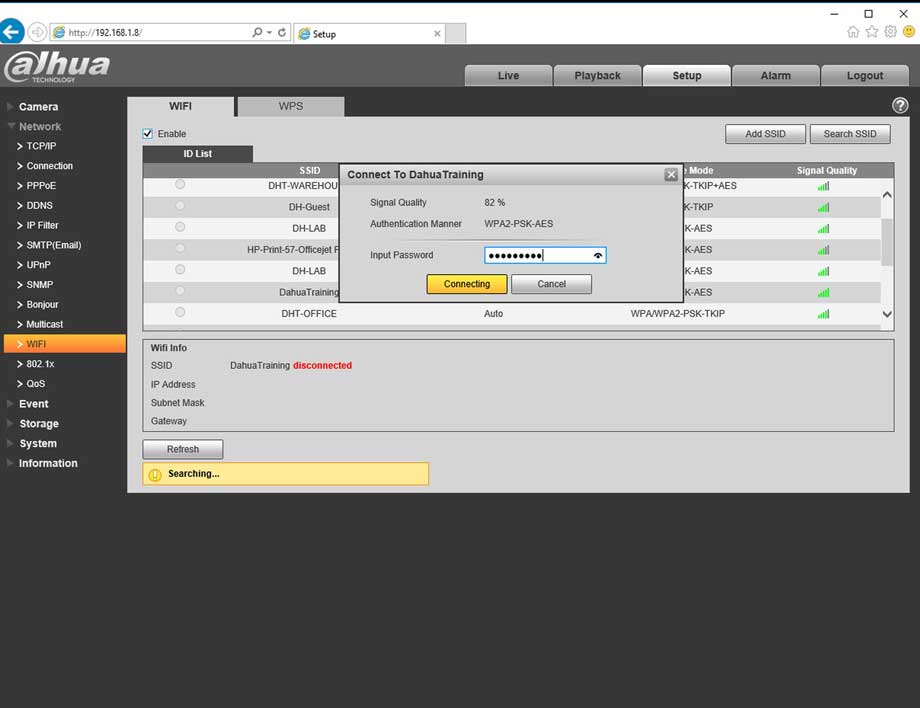
WiFi Kamerayı NVR Bağlamak Tüm Markalar
12.09.2022 •
2 dk
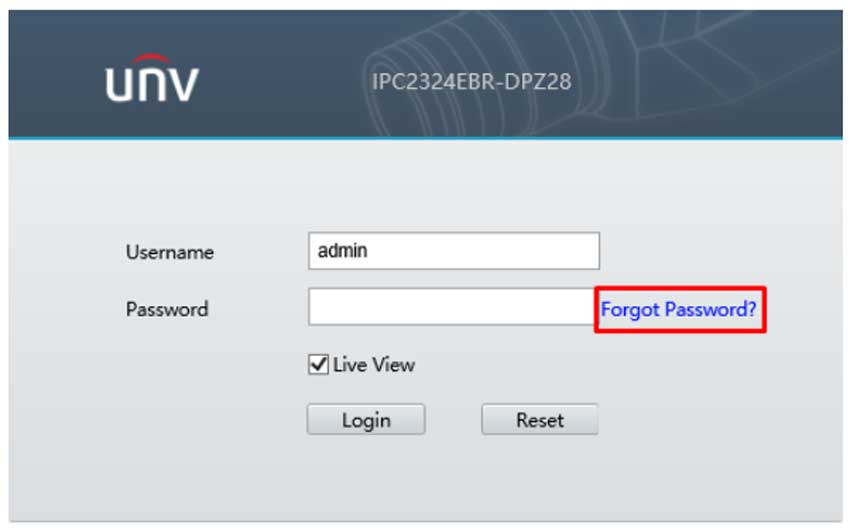
Uniview Şifre Resetleme Tüm Modeller